Start here
Your first screen
Ten minutes from a blank display to a clock, weather, a calendar and a chore chart on the wall. Everything here happens in the editor on a laptop; nothing needs a terminal.
1. Open the editor
Open the address the wall is showing (http://home-screens.local:3000 on the pre-built image) on a laptop or desktop. The editor needs a wide window, so a phone shows a menu instead and offers to copy the address for you.

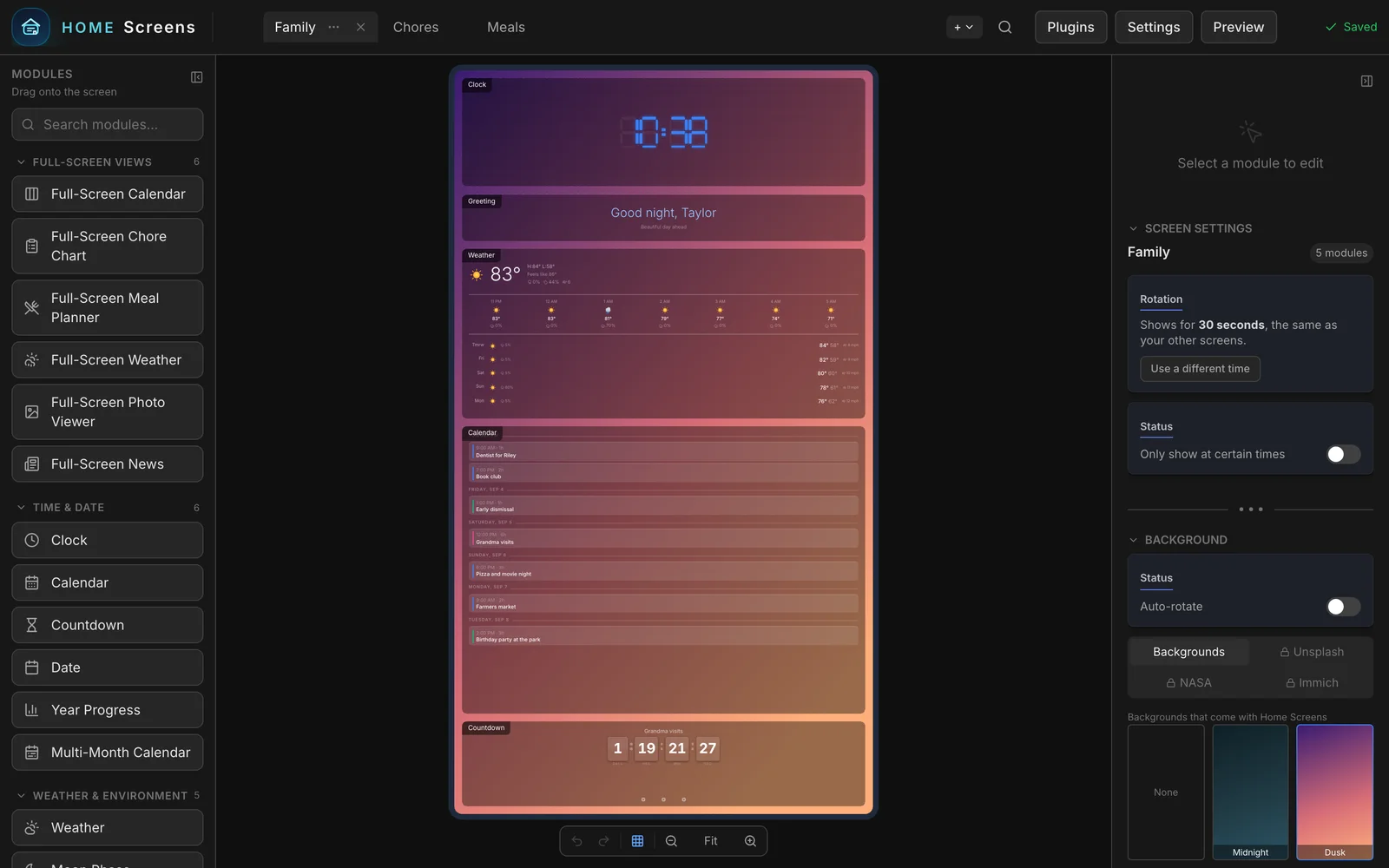
The editor has five areas, and you will use all of them today:

- Screens along the top. A display cycles through its screens in turn. You start with one.
- Modules down the left. Drag any of them onto the screen.
- Your screen in the middle, shown at the same shape as the wall.
- Settings for what you picked on the right. Click a module and its options appear here. Click empty space and you get the screen's own settings and its background.
- Plugins, Settings, Preview in the top right corner, and a Saved tick beside them. There is no Save button. Every change is saved a second after you make it and the wall picks it up a few seconds later.
2. Pick a template
Click Choose a template on the empty screen. A template is a finished screen: modules already placed, sized, and styled for a portrait wall. Pick Family Dashboard for a family (clock, greeting, weather, calendar, countdown), Weather Station for a weather wall, or Minimal Clock for a photo frame. Each one has a landscape twin for a screen on its side.

The template lands on your screen and the wall shows it a few seconds later. From here on, you are adjusting, not building.
3. Set your location
Weather, sunrise, moon phase and air quality all need to know where you are. Click Settings, open Location & language, type your town or zip code in Your town or zip code, and click Look up.

Go back to the editor with Editor in the top left. The weather module fills in on its own. A new install uses Open-Meteo, which is free and needs no account, so there is nothing else to set up. If you would rather use another weather service, see Weather.
4. Add a calendar
Open Settings > Calendar. Under iCal / ICS feeds, click Add Feed and paste a calendar link. Google Calendar, Apple, Outlook and most others hand out one of these links from their sharing settings; the Calendars page shows where to find it for each, and covers signing in with Google or iCloud instead.
Give the feed a name and a colour. The calendar module on your screen shows the next few days of events as soon as the feed loads.
5. Add a chore chart
Back in the editor, find Chore Chart under Personal in the module list and drag it onto the screen. Drop it anywhere; you can drag it into place and resize it from its bottom-right corner afterwards.
The chart is empty until it knows your family. That part is done from a phone, in the family remote's Chores tab: add each person, then add chores and who does them. The Chores and rewards page walks through it. Once chores exist, the wall shows today's list and kids can check things off there or on their phones.

6. Hand it to the family
Open Settings > On your phone. It shows two addresses with QR codes: Kids: check off chores and Parents: family remote. Scan them with the phones in the house, or click Print and stick the codes on the fridge next to the display.

The same page has Ask for a password on the family remote. Turn it on once you are happy with the setup, so guests on your WiFi cannot change things. The kids' page stays open on purpose.
What you have now
A clock, the weather, your calendar and a chore chart on the wall, and the family remote on every phone. From here:
- Editor to move things around, add screens, change backgrounds and styles
- Modules for everything else you can put on a screen
- Profiles and schedules to show different screens at different times of day