

Start here
Overview
A free, open-source smart display for your kitchen, hallway, or family command center. Runs on a Raspberry Pi, set up from your laptop, used from your phone, with 44 built-in modules. About 10 minutes of hands-on work, and around 30 minutes from unboxing to first screen.
Install
Flash the card, plug in the Pi, find it on your network.
Your first screen
Pick a template, set your location, add a calendar and a chore chart.
On your phone
The family remote for parents and the chores page for kids.
Troubleshooting
Black screen, weather not loading, calendar not syncing, and more.
Your weekend project
- Get the hardware. A Raspberry Pi and a screen. See What to buy.
- Flash the card. Download the ready-to-boot image and write it with Raspberry Pi Imager. About 10 minutes, most of it waiting for the download. See Install.
- Plug in the Pi. The screen shows the address to open, and a QR code, as soon as it has booted.
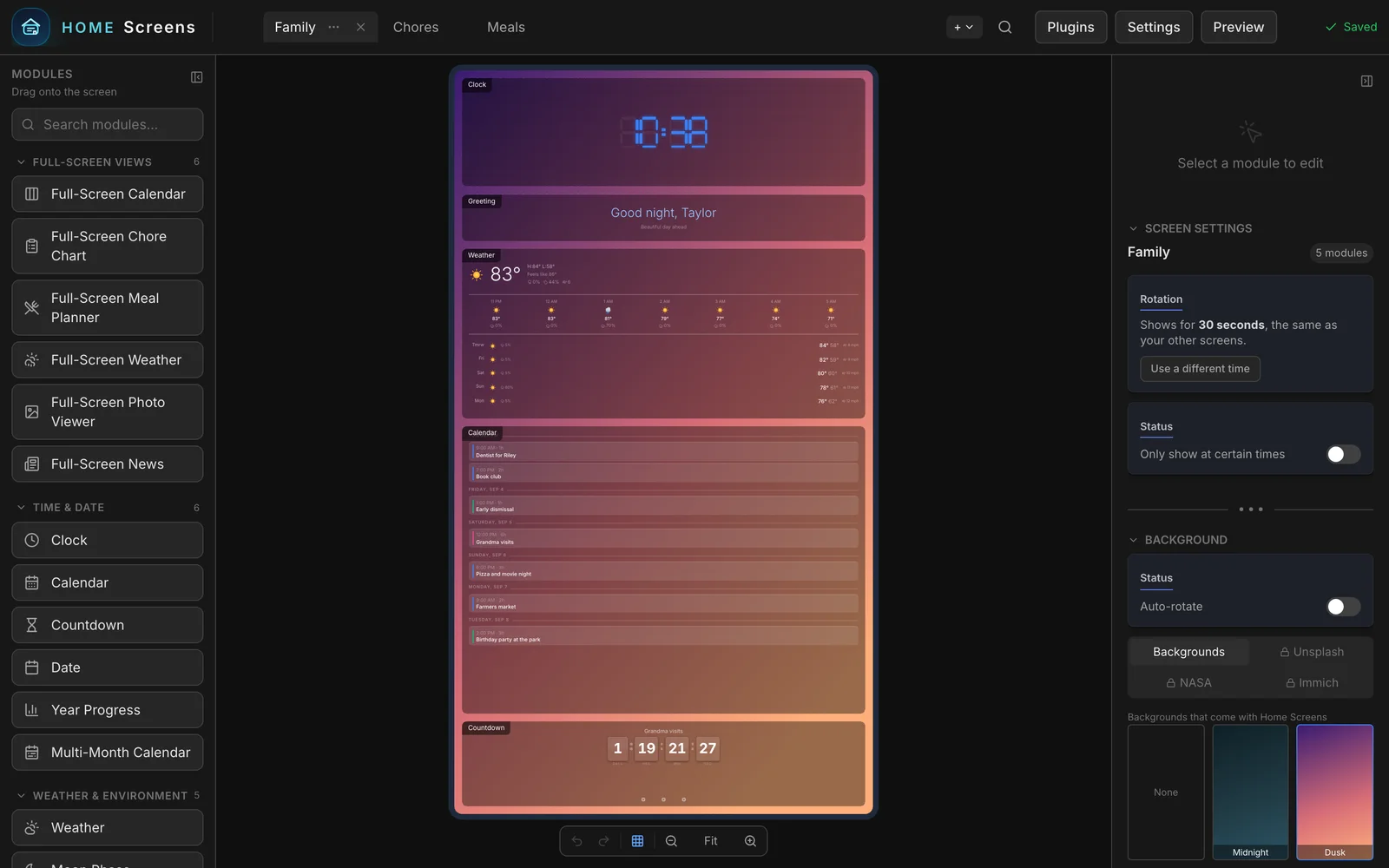
- Open the editor on a laptop and pick a template. Set your location and the weather fills in. There is no Save button; every change goes live on the wall a second after you make it. See Your first screen.
- Hand it to the family. Settings > On your phone shows two addresses: the family remote for grown-ups, and a chores page for kids. See On your phone.
The words you will see
- Display: a physical screen with a Pi behind it. Most homes have one; you can add more later.
- Screen: one layout. A display cycles through its screens in turn.
- Rotation: that cycling from one screen to the next. How long each screen stays up is set under Settings > Screen.
- Orientation: whether the picture is portrait or landscape. Also under Settings > Screen.
- Module: one thing on a screen. A clock, a weather forecast, a chore chart, a photo slideshow.
- Plugin: an extra module you install from the Plugins button in the editor. Home Assistant, Garmin and Strava are plugins.
- Family remote: the phone page for grown-ups, at
/remote. Chores, meals, timers, photos, and control of the wall. - Kid view: the phone page for children, at
/chores. Check off today's chores and spend tickets, nothing else. - Hub: the Pi that runs Home Screens. It only comes up when you have more than one display; the others show what the hub serves.
Privacy and safety
- Your content stays on your Pi. Your screens, photos, calendars, chores, and API keys live in files on the device. No cloud accounts, no database, no required servers.
- One anonymous usage report a day. Home Screens sends its version, platform, and how many screens and modules you have. Never your calendar events, photos, notes, or API keys, and nothing with your name on it. The report itself carries no location and no network address, though the server that receives it can see where the request came from, the same as any website you visit. Turn it off in Settings > Status, or read exactly what it sends in the FAQ.
- The editor has no password until you set one. Anyone on your home network can open it and change your screens. Set a password in Settings > Security; it covers the editor and the family remote, and the kids' chores page stays open on purpose.
- You can always roll back. Settings > System & updates lists every published version; pick an older one and Home Screens re-installs it, which needs an internet connection. If an update fails its health check, the previous version is put back automatically.
Getting help
- Troubleshooting and the FAQ cover the common questions
- Discord for a quick answer from other users
- GitHub Issues to report a bug or ask for a feature
- Releases to see what is new